
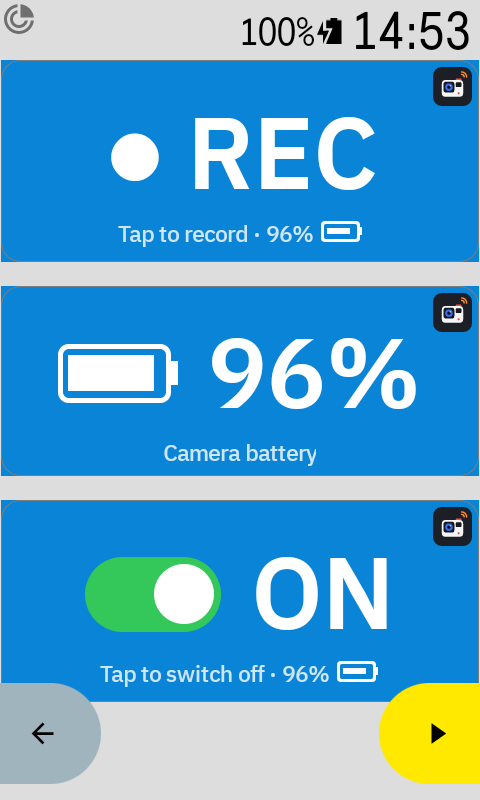
Three simple tiles
Add them to any data page of your Karoo and you are done.
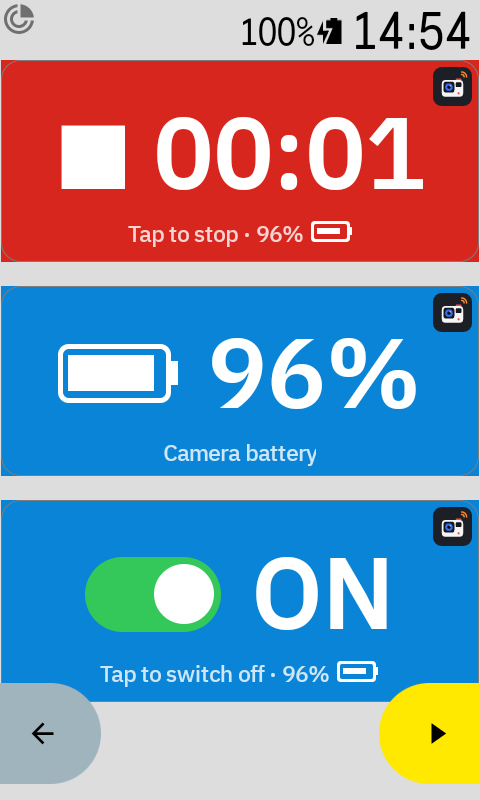
Camera Record
Tap to start recording. Tap twice to stop, so a bumpy road can’t end your clip by accident. Shows the recording time.
Camera Battery
The battery level of your camera at a glance, with an icon that fills up with the charge.
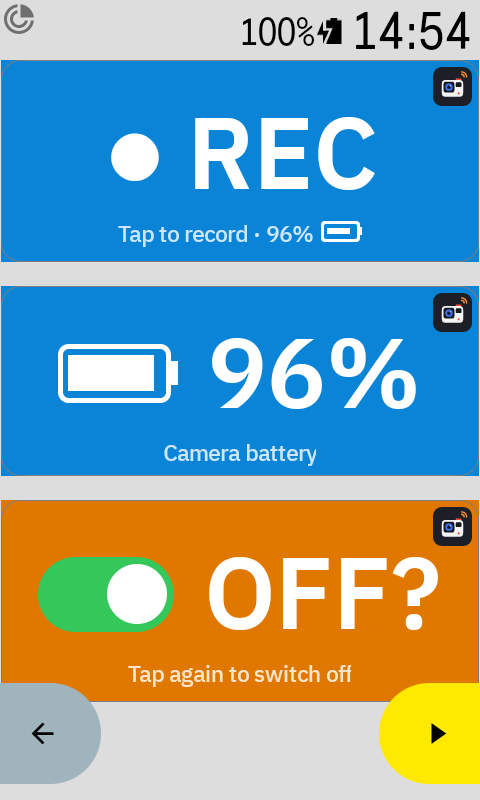
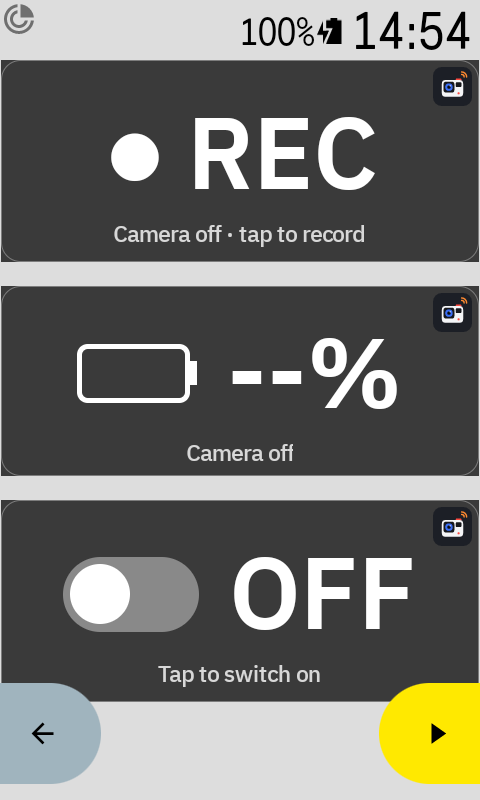
Camera On/Off
Switch the camera on before the ride and off afterwards. Switching off during a recording stops it first.
Set up in a few minutes
You need a Hammerhead Karoo, a GoPro (HERO9 or newer works best) and your phone with the Hammerhead Companion App for the one-time install.
-
Install Kamerad
On your phone, touch and hold the Download button above, choose Share link and pick the Hammerhead Companion App. The Karoo downloads the app itself: then tap Install on your Karoo. Hammerhead asks for recent Karoo software and Companion App and for the Karoo to be on Wi-Fi: see their sideloading guide.
Prefer to share the downloaded file? Make sure the download has finished and that it is the newest kamerad.apk, otherwise the Karoo shows “Unknown error”.
Prefer a computer? Turn on USB debugging on your Karoo (Settings → About → tap “Build number” 7 times, then Settings → Developer options) and run
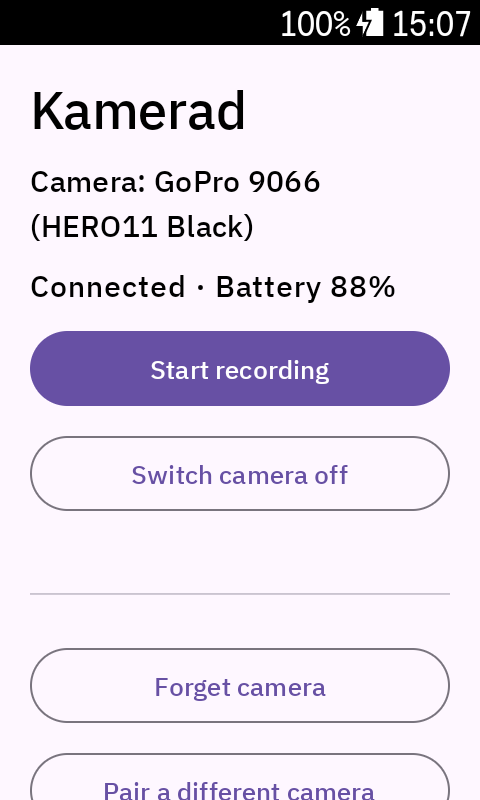
adb install kamerad.apk. - Pair your camera Open Kamerad on the Karoo (Extensions → Kamerad → Open) and allow Bluetooth. On the GoPro swipe down and go to Preferences → Wireless Connections → Connect Device → GoPro Quik App. Then tap “Search for cameras” in Kamerad and tap the name of your camera.
- Add the tiles In your Karoo profile open a data page, tap “Add field”, choose Kamerad and pick the tiles you like.
- Ride Tap the tile to record. That’s it.
The full guide with pictures is on GitHub.
Good to know
- Tested with a GoPro HERO11 Black. A HERO8 works too, but it can’t be switched on from the Karoo: use its own button.
- Kamerad keeps the camera awake only while a Kamerad tile is on screen. Two minutes after you switch to another page, it lets go, and the GoPro’s own Auto Power Off takes over. A running recording continues, and the tile shows it again when you come back.
- While a tile is on screen, Kamerad switches the camera off after 5 minutes without recording (adjustable in the app). It never stops a recording.
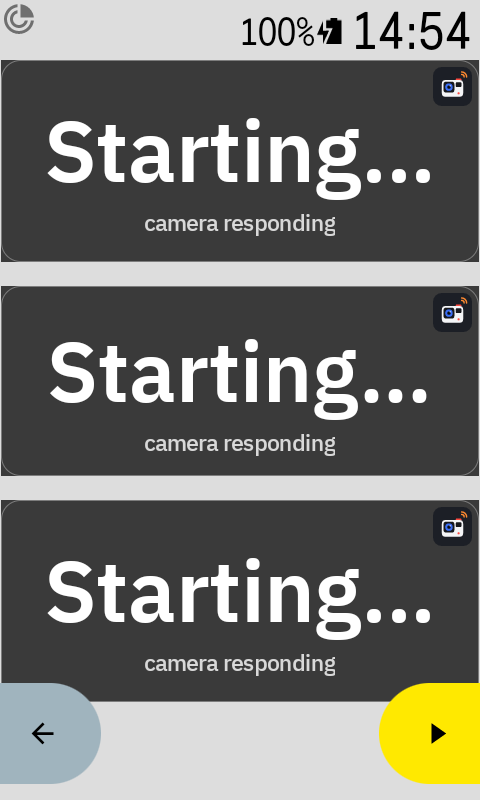
- Waking a sleeping camera takes a few seconds. The tiles say “Waiting…” and then “Starting…”.
- The GoPro talks to only one device at a time. If the GoPro Quik app on your phone is connected to it, Kamerad can’t reach the camera and keeps saying “Waiting…”. Close Quik while you ride, or turn off Quik’s Bluetooth permission in your phone’s settings.
- To change or remove a Kamerad tile, use Profiles → Data pages on the Karoo. During a ride, tapping a Kamerad tile records or switches the camera, so the Karoo’s own editing doesn’t open there.
Simple on purpose
Kamerad does a few things and nothing else. If you want more features, such as recording automatically with your ride, highlight markers, photo mode, video settings or SD card status, have a look at ClipRide, a more full-featured open-source GoPro extension for the Karoo.